ZyperOS Controls, Save States and Resume
ZyperOS uses the same menu buttons across the library. Game controls depend on the system. The handheld has a controls page for both, plus six save-state slots where the emulator supports them.
On this page
These steps cover ZyperOS 1.0.5. Check your version in MENU > About.
Everyday buttons
| Button | Action |
|---|---|
| A / B | Open or select / go back |
| X on a game | Open its details; Y there changes its favorite status |
| START on a game shelf | Switch covers and list |
| L1 / R1 | Jump along a shelf; change tabs in the home menu |
| MENU | Open settings or pause into the game menu |
| MENU + VOL+ / VOL- | Increase or decrease screen brightness |
| SELECT outside a running game | Open MP4 for music, books and videos |
On the Pixel 2, MENU is the FUNCTION key. It opens the menu when you release it. MENU > About > Controls lists all common buttons.
Find a system's controls
During a game, press MENU. Use L1 or R1 to select the Controls tab. Its Hotkeys row opens the read-only pages. There, Left and Right turn pages.
For example, PSP uses R2 to switch the D-pad between digital and analog control. Nintendo DS uses L2 to swap screens. Its R2 enables the stylus controls. The Nintendo DS guide explains the layouts and stylus.
Change a button
The Controls tab lists the handheld's buttons. The Pixel 2 drawing highlights the selected button. Left and Right change its action; A opens the choices. Choose another button, a turbo action or Nothing.
Applies To selects this game or its whole system. Giving a button another button's action swaps the two. Reset Buttons asks before it restores the defaults. MENU, POWER, volume and the SELECT hotkeys keep their functions.
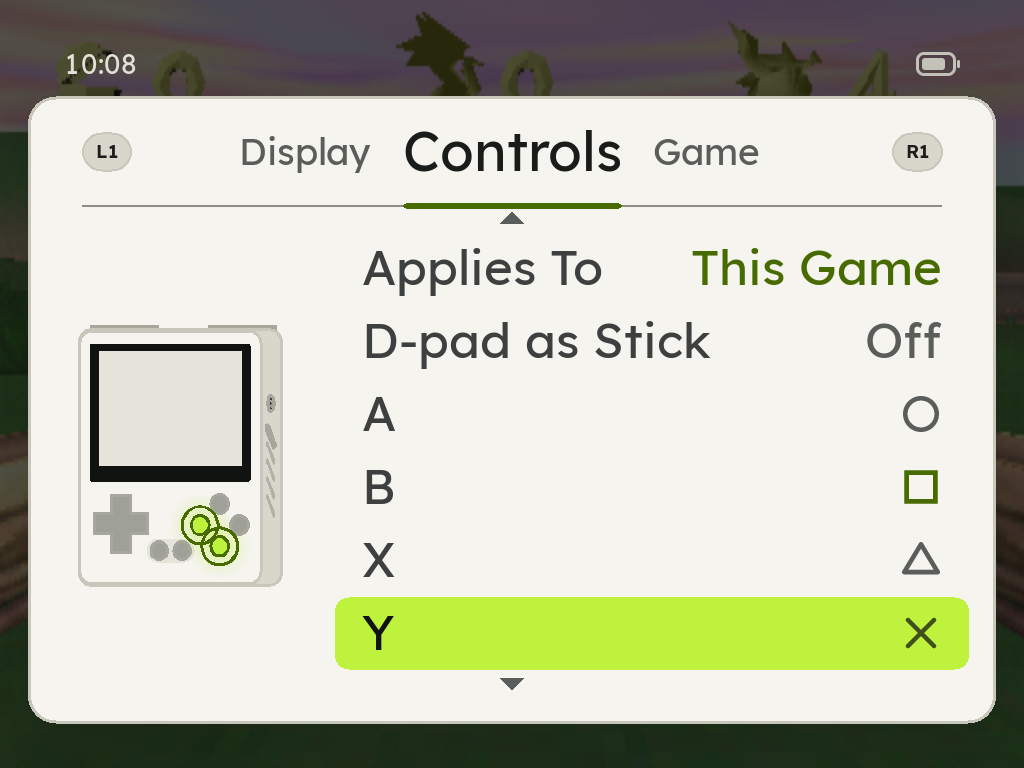
D-pad as Stick selects the left stick for Nintendo 64, Dreamcast, PlayStation and PSP games. PlayStation games also need the controller's analog mode.
Game saves and save states
A game save records progress through the game's own save system. A save state records the emulator at a specific moment. Use the game's save command when available.
- Open MENU > Game > Save during play.
- Select one of the six numbered slots with Left or Right.
- Press A to save the state.
- Use MENU > Game > Load to select and restore it later.
Saving to an occupied slot replaces its state. ScummVM, J2ME, OpenBOR and TIC-80 do not provide these save states. Use their own save systems.
A state belongs to its emulator. Changing a core can prevent resume, while the game's save remains.
Change discs
For a game with several discs, open MENU > Game > Disc when the game asks for the next disc. Select the disc, then continue the game. The row appears for a supported multi-disc set.
Quick saves and speed
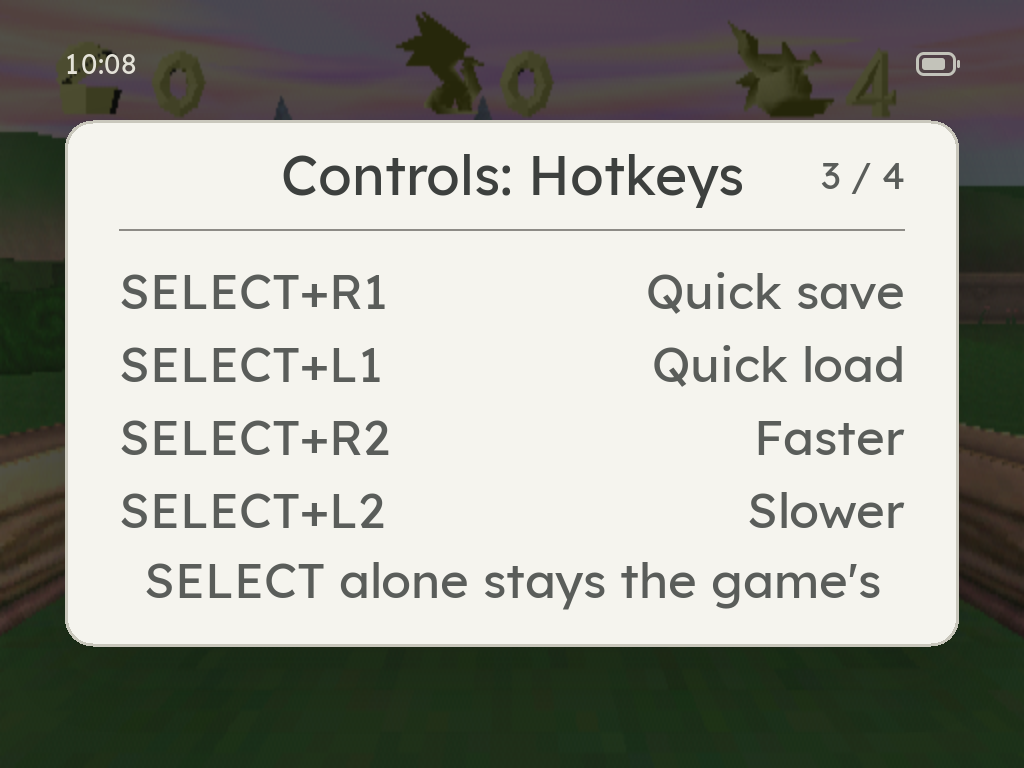
SELECT + R1 saves; SELECT + L1 loads. Quick Slot in the game menu selects their numbered slot. Each system remembers its choice.
SELECT + R2 increases speed through 1.5x, 2x and 3x. SELECT + L2 reduces it. The actual speed depends on the game, and fast play has no sound.
Stop and resume
For games with state support, POWER saves before shutdown. The next start resumes that game. On the shelf, A resumes an available state; Y starts fresh.
To return to the shelf, press MENU, then X. If a game stops responding, hold MENU + START for one second. After a crash or power loss, ZyperOS opens the home screen.
Back up game saves and save states before changing emulators or removing games. The File Transfer guide explains file downloads.