How to Add Games to the GKD Pixel 2 (Wi-Fi or USB)
On ZyperOS, a game is a file in its console's folder on the microSD card. You can put it there three ways: with the card in a computer, over Wi-Fi from any browser, or over the USB cable with no Wi-Fi at all. This guide covers the folders first, then each way in.
On this page
The folders
At the first boot, ZyperOS turns the rest of the card into a partition named ZYPEROS, which a computer can read. Games go in Roms/, in a folder named after the console the way people say it:
| Console | Folder | Main file types |
|---|---|---|
| NES | Roms/NES | .nes .fds .zip |
| SNES | Roms/SNES | .sfc .smc .zip |
| Game Boy Advance | Roms/Game Boy Advance | .gba .zip |
| Genesis | Roms/Genesis | .md .gen .bin .zip |
| PlayStation | Roms/PlayStation | .chd .cue .pbp .m3u |
| Nintendo 64 | Roms/Nintendo 64 | .n64 .z64 .v64 .zip |
| Nintendo DS | Roms/Nintendo DS | .nds .zip |
| Dreamcast | Roms/Dreamcast | .chd .cdi .gdi |
| Arcade | Roms/Arcade | .zip .7z |
That is nine of the forty. The README's table lists every folder, its file types and the emulator that runs it. Spell the folder exactly: a game in a folder ZyperOS does not know, or a file type it does not take for that console, does not show up.
Some systems need a BIOS file in Bios/ as well, such as the PlayStation and the Dreamcast. The BIOS guide lists each one.
A console with nothing in its folder stays hidden on the home screen, so the home only shows what you can play.
A card with no games yet
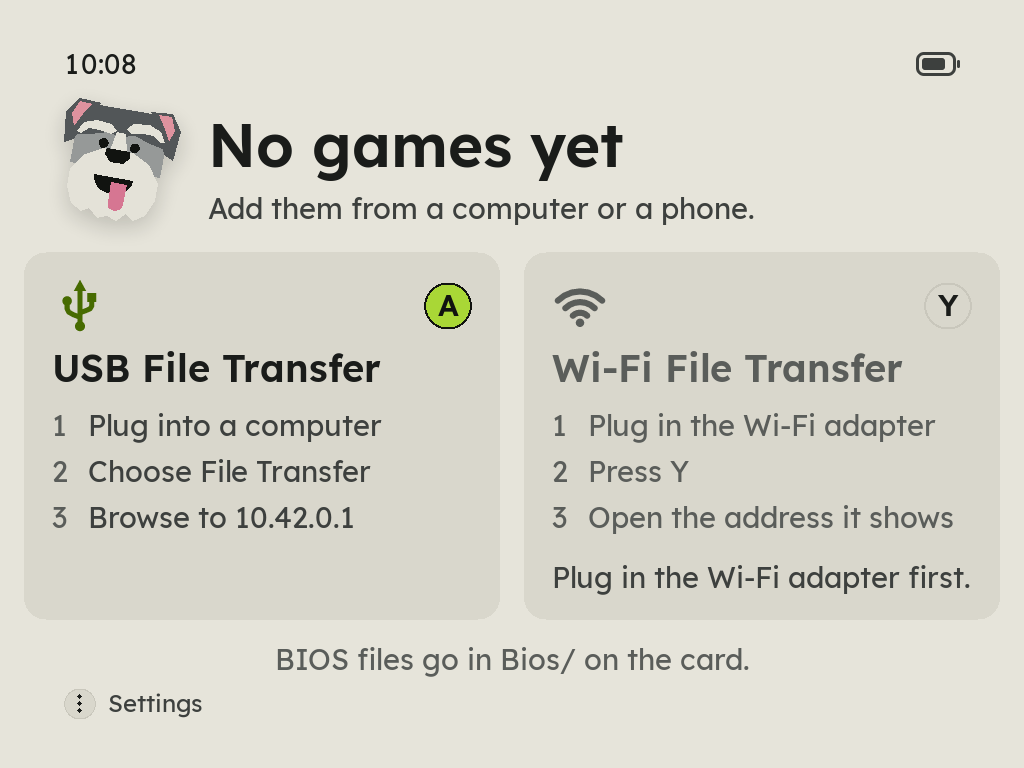
A card with no games opens on No games yet, with the two ways to send them, one button each: A for USB File Transfer and Y for Wi-Fi File Transfer. The Pixel 2 has one USB-C port, and the cable and a Wi-Fi adapter both need it. So the way that cannot start now is dimmed, says why, and lights up when you plug in or unplug. When the first games arrive, the home shows them and Zyper cheers.
Way 1: the card in a computer
- Turn the Pixel 2 off and take the card out.
- Put it in the computer's card reader. It shows up as ZYPEROS.
- Copy each game into its console's folder in
Roms/. - Eject the card, put it back and turn the handheld on.
A Mac leaves small ._name files beside everything it copies. ZyperOS skips every name that starts with a dot, so they never show as games. dot_clean /Volumes/ZYPEROS removes them if you want a tidy card.
Way 2: Wi-Fi File Transfer
The Pixel 2 has no Wi-Fi of its own, so this needs a USB Wi-Fi adapter in its USB-C port. The Wi-Fi guide says which ones work.
- Join a network in MENU > Wi-Fi.
- Open MENU > Wi-Fi File Transfer. It shows an address and a four-digit PIN.
- Open that address in a browser on your phone or computer, and type the PIN.
- Drag games into their console's folder. They are on the shelf when you leave the screen.
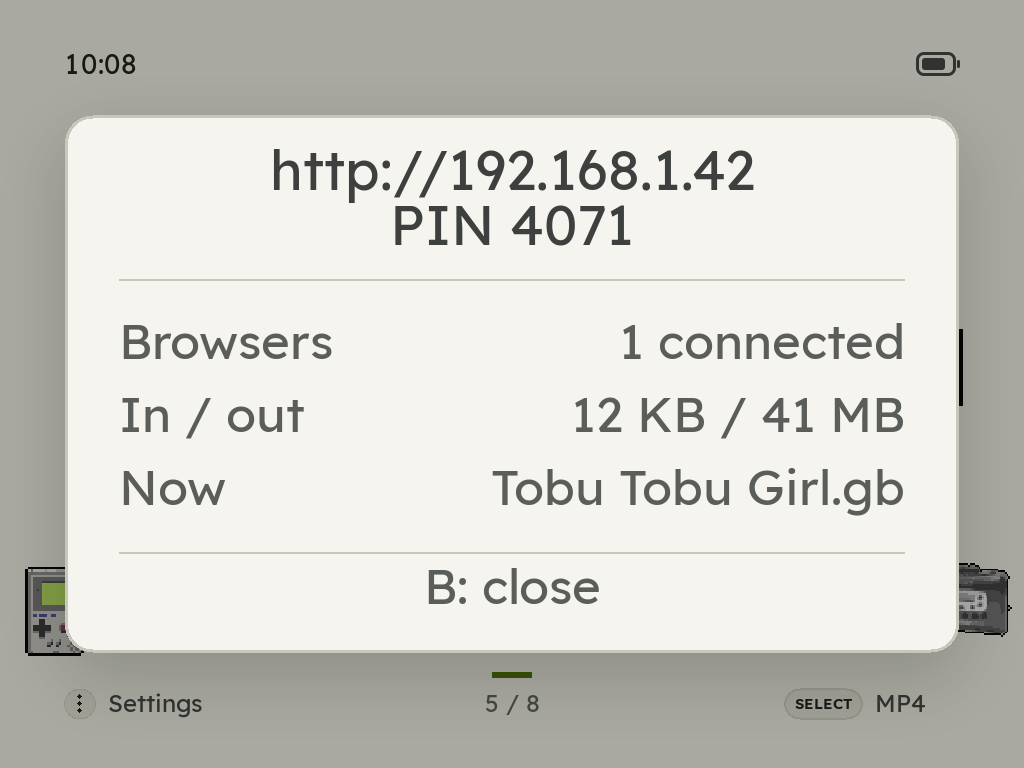
The PIN is new each time the screen opens, and five wrong PINs make the page wait 30 seconds. No app and no account are needed.
No Wi-Fi network around
With the adapter in and no network joined, Wi-Fi File Transfer makes the handheld its own Wi-Fi network for as long as the screen is open. It shows a QR code, the network's name and password, and the PIN. Scan the code with your phone's camera, join, and the transfer page opens by itself at 10.42.1.1. Close the screen and the network goes away.
The page first opens in the phone's sign-in sheet, which is a small browser: on an iPhone it can upload but not save a download, and on Android it can download but not upload. The page says how to open it in the real browser.
Way 3: USB File Transfer
The same page, over the USB cable, with no Wi-Fi. It works with a Mac, Linux or Windows 11. Windows 10 has no driver for this kind of connection.
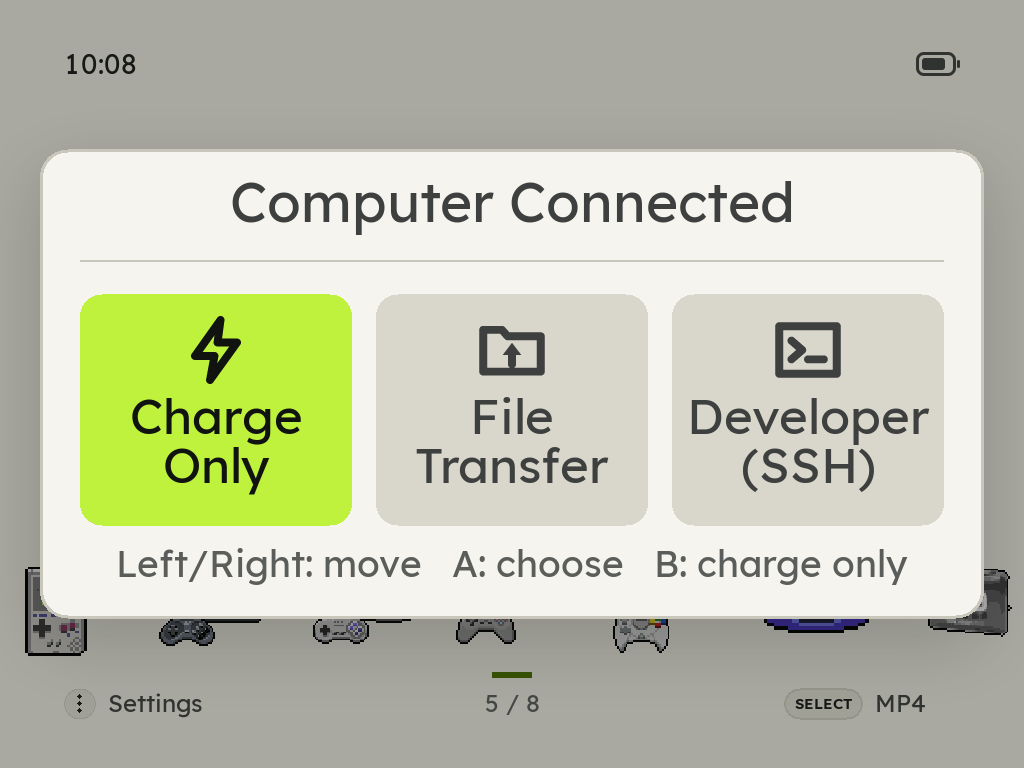
- Plug the Pixel 2 into the computer. The port only charges until you say otherwise, so the handheld asks: Charge Only or File Transfer. Choose File Transfer.
- Open
http://10.42.0.1in a browser on that computer, and type the PIN from the screen. - Drag games into their console's folders.
While USB File Transfer is open, the computer can also open a shell on the handheld with ssh [email protected], the PIN as the password. To copy with scp, add its -O flag, because the handheld has no SFTP server: scp -O game.zip [email protected]:/roms/SNES/.
The File Transfer page
Wi-Fi File Transfer, the handheld's own network and USB File Transfer all open the same page. It shows the card's seven folders: ROMs, Music, Audiobooks, Videos, BIOS, Saves and Save States, each console's folder with its own pixel art.
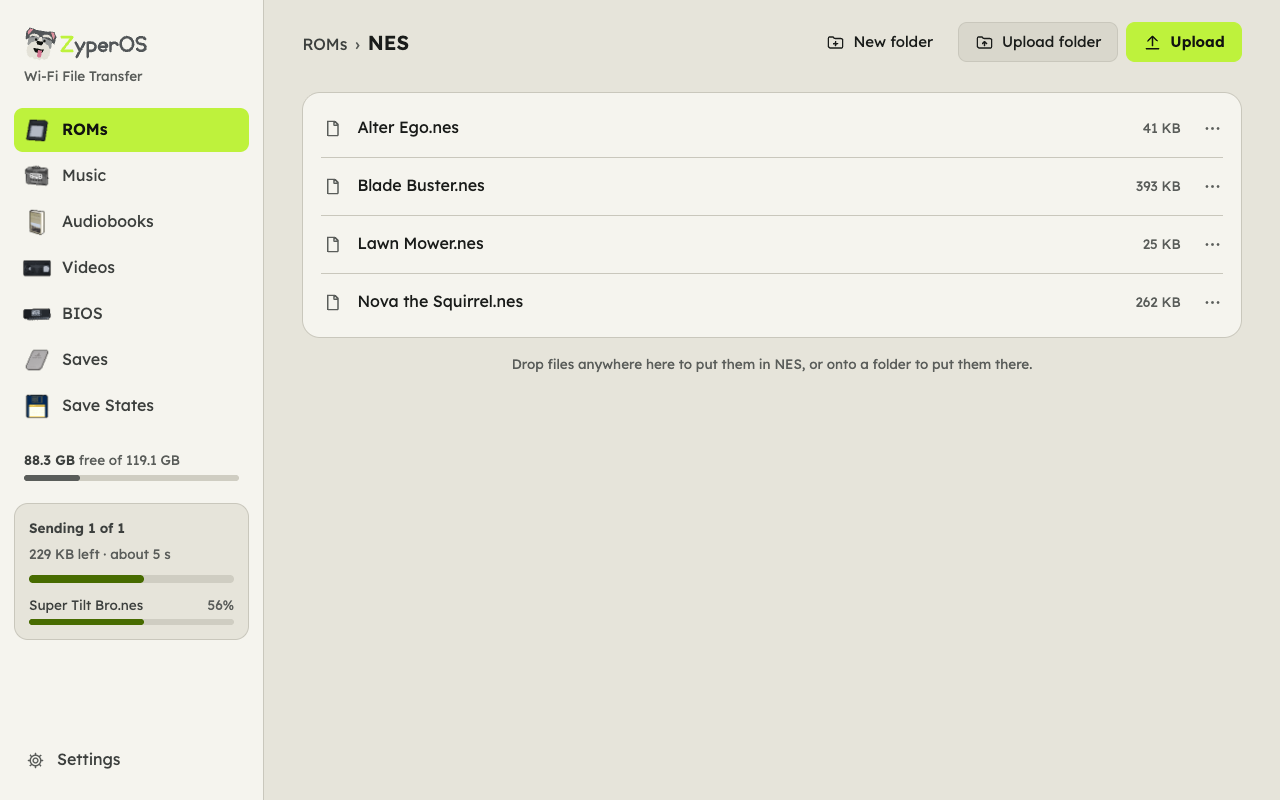
- Upload by dropping files anywhere on the page, or onto a folder's row. A dropped folder keeps the folders inside it.
- Free space shows under the folders. Files that do not fit are caught before anything is sent.
- Each file has a ⋯ menu for Download, Rename and Delete. Delete always asks first.
- On a phone the folders are a row of chips and Upload is a button under your thumb.
Keep playing while files move
B closes File Transfer when nothing is moving. While files move, it asks: Keep going moves the files behind the shelf while you use ZyperOS, with a mark beside the clock; Stop after this file finishes the file on its way; Cancel now stops at once and deletes the half-written file, so it never shows up as a broken game. A game cannot start while files move, so starting one asks first.
My games do not show up
- Check the folder name against the table, spelled exactly, and the file type.
- Games sent with File Transfer show up when you leave its screen. Games copied any other way while the handheld is on show up after Rescan Folder in that console's menu, or after a restart.
- Arcade and Neo Geo games are ROM sets: keep each
.zipwhole and named the way FinalBurn Neo names it, and putneogeo.zipinBios/for Neo Geo games.
Sources
- ZyperOS README, Supported systems and Install: folders, file types, Wi-Fi and USB File Transfer, the File Transfer page, the FAQ.
- The ZyperOS user guide, File transfer: the PIN, SSH over the cable, plugging into a computer.