Customize the ZyperOS Theme and Home Screen
ZyperOS separates appearance from theme settings. Appearance selects light or dark mode. Theme sets the accent, background tones, corners and Zyper. You can change all of these on the handheld.
On this page
These steps cover ZyperOS 1.0.5. Check your version in MENU > About.
Open the Theme settings
- Return to the home screen.
- Press MENU.
- Use L1 or R1 to select Display.
- Select Theme.
- Choose a row with Up or Down.
- Change its value with Left, Right or A.
Each change applies and saves at once. The two previews show light and dark appearance together. B returns to Display. MENU closes the menu.
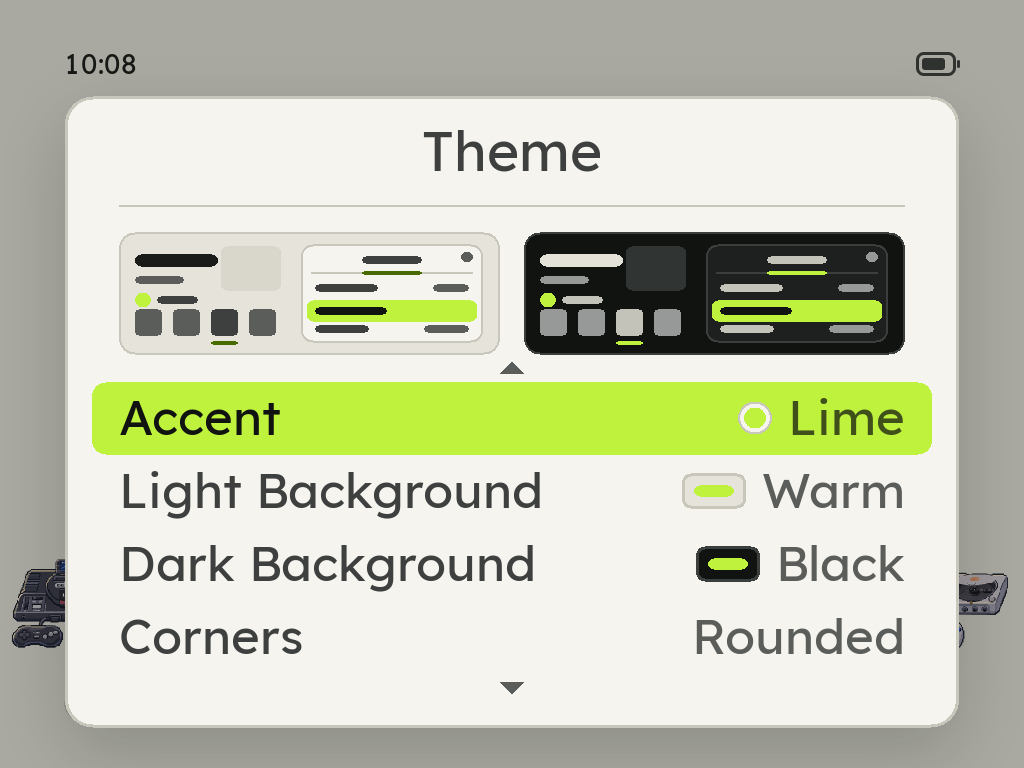
Choose the colors and shape
| Setting | Choices |
|---|---|
| Accent | Lime, Green, Teal, Blue, Purple, Pink, Red, Orange, Yellow or Silver |
| Light Background | Warm, Neutral or Cool |
| Dark Background | Black, Deep Blue or Dark Grey |
| Corners | Rounded or Square |
| Zyper | On or Off |
The accent stays the same in both appearances. Each appearance keeps its own background. ZyperOS calculates the other interface colors to keep text readable.
Zyper off hides him from menus and notices. Boot, loading and charging screens still show him.
Reset to Default restores Lime, Warm, Black, rounded corners and Zyper on.
Switch with the clock
- Open MENU > Display > Appearance.
- Choose Light, Dark or Auto.
- For Auto, open MENU > Display > Auto Hours.
- Set Light From and Dark From.
The times change in half-hour steps. The default light period runs from 7:00 AM to 7:00 PM. Check MENU > System > Date & Time if the appearance changes at the wrong time.
Choose the home and shelf
MENU > Display > Home Screen selects Spotlight, Gallery or Grid, which shows 18 systems at once. All three use ZyperOS's original console illustrations. System Order sorts systems by name or release date.
Inside a system, press START to step from the row of covers to a grid and then to a list. The grid shows six to twelve covers at once, in cells shaped to the system's art. Each system remembers its choice. The cover guide explains artwork and video previews.
For matching sound choices, open MENU > Sound. Choose button sounds in UI Sounds, or follow the menu music guide.